Moving Digital Furniture Without Breaking Anything
Ah yes, the fun part of building a new server—migration. If hardware assembly feels like building IKEA furniture, service migration is more like moving a fully decorated house, room by room, hoping nothing fragile gets dropped along the way. My older HP Z600 had accumulated quite the collection of services—Docker containers, web servers, Apache configs, and some stray gremlins I’m sure were hiding in the corner.
The first step was mapping everything out. Which services needed to be isolated for security? Which ones needed to stay online even when I was tinkering with something else? And most importantly, which services were unnecessarily running in host mode and could now finally be wrangled into neat little Docker containers? Plex, CrowdSec, and Glances were all freeloading in host mode on the old server, and that wasn’t going to fly anymore.
So, let’s break down how I approached this migration and what the new server is hosting.
This is where most of my personal Docker services live, alongside all my dev/staging WordPress instances. It’s essentially the sandbox for all my experiments, side projects, and apps I absolutely needed to self-host because… well, reasons.
Some notable residents of this server include:
- 40 WordPress installations (because one blog is never enough).
- SFTPGO, which serves as my backup server for all WordPress sites via UpdraftPlus.
- AriaNG for managing downloads.
- FreshRSS & Feedropolis to pretend I’m still organized about my readings.
- Actual Budget & Firefly III for financial management (or at least, financial awareness).
- Glances for system monitoring.
- Nextcloud for file storage.
- Immich for photo and video management.
- Plex for transcoding Linux ISOs (wink).
- And, of course, Portainer to keep this digital circus in order.
Basically, if it can run in a container and I can tinker with it, it lives here.
This is the “serious” Docker server. It hosts client projects, production WordPress sites, and APIs that absolutely cannot go down every time I decide to reboot my main Docker playground. This server also runs Portainer Agent, allowing me to monitor and manage it remotely as part of a node cluster.
It’s like the quiet, responsible sibling of my chaotic personal Docker server.
Originally, I thought about switching over to Traefik during the migration. But after some testing, I realized Traefik is essentially just a traffic cop—it routes domains to the right ports, but it doesn’t handle PHP or virtual hosts, which are essential for my setup.
So, I stuck with good ol’ Apache2. This time, though, I made sure to properly set up Mod-Security2 for added protection. I also installed Docker to run MySQL and PostgreSQL databases, which are much easier to manage in containers.
Migration was surprisingly smooth. A simple rsync to move the files, a mysqldump from the HP Z600, and importing those SQL files into the Docker database containers on the new server did the trick. Nothing exploded, and Apache fired up without throwing tantrums.
I’m currently running three LXC containers, each serving a very specific purpose:
- Cloudflared for secure tunneling.
- AdGuard Home for network-wide ad blocking.
- Uptime Kuma (running two instances) for service monitoring.
These were relatively easy to set up. For Cloudflared and AdGuard Home, I used community scripts available for ProxmoxVE. As for Uptime Kuma, I opted for a rootless Docker setup to keep things clean and isolated.
The three containers fit perfectly into the free three-node limitation of the Proxmox Business Plan. It’s almost like I planned it.
Docker Migration: The Good, The Bad, and The Database
Migrating most Docker services was blissfully simple—it was mostly a matter of copying volumes over using rsync. Here’s the command I used:
sudo rsync -avogh --info=progress2 folder/file user@new-server-ip:path
The -a option copy files recursively and preserve ownership of files when files are copied.
-v runs the verbose version of the command; all of the processes that are run will be written out for the user to read
-o preserves the owner of the files (since I’m using sudo and some docker volumes are mapped as root:root)
-g preserves the group, same reason as the above.
-h output numbers in a human-readable format
–info=progress2 just makes the transfer information more readable
The Problematic Transfers
But not everything went smoothly. Databases threw a wrench into my plans. Instead of just copying MySQL or PostgreSQL data folders, I realized it was far safer to export the databases using mysqldump, set up fresh containers, and then import the SQL files back in. This ensured data integrity and saved me from a potential cascade of permission-related headaches.
1. Nextcloud: A Comedy of Disk Mapping Errors
In theory, migrating Nextcloud should’ve been a simple shift-and-lift operation. In practice? Not so much.
When mounting disks in Proxmox using the following command:
qm set {vm-id} -virtio{id} /dev/sd{disk}Next is to mount the right disks at the right place. I have quite a convoluted disk mapping of Nextcloud as follows.
vda  9.1T  0  disk  nextcloud/data
vdb  9.1T  0  disk  nextcloud/data/maya/files/linux-iso-1
vdc  9.1T  0  disk  nextcloud/data/maya/files/linux-iso-2
vdd  9.1T  0  disk  nextcloud/data/maya/files/linux-iso-3
I managed to mess up the mapping. Instead of pointing the first disk to nextcloud/data, I accidentally pointed it to nextcloud/. Cue hours of debugging, hair-pulling, and the quiet sobbing of lost ISOs.
Lesson learned: triple-check disk mappings before committing.
2. Plex: Claim Key Drama and GPU Passthrough Shenanigans
The Migration
Previously, Plex was running as a host service on my old HP Z600, casually freeloading on the system like a roommate who eats your food and never cleans up. Moving it into a Docker container felt like the right move—more isolation, easier updates, and fewer spaghetti config files lying around.
But Plex, in all its wisdom, requires a Claim Key when you move servers. No key? No Plex. And Plex doesn’t make this process easy if your server isn’t running locally. After scrolling through forums, swearing at error messages, and questioning my life choices, I stumbled upon uglymagoo’s plex-claim-server GitHub project. Shoutout to that hero—seriously. Without it, I’d probably still be staring at a blinking login screen, wondering if Plex had become self-aware and was actively gaslighting me.
GPU Passthrough for Encoding
Now came the second boss fight: GPU passthrough. Because what’s Plex without smooth transcoding? Basically just a glorified file browser.
The first step was enabling IOMMU in Proxmox, configuring GPU passthrough, and performing the sacred ritual of rebooting five times while holding my breath. I followed a simple guide written by /u/cjalas on Reddit, which was clear, concise, and didn’t assume I was an absolute potato (thanks, buddy).
To make sure the GPU passthrough was actually working, I passed it through to a Windows VM first. Because if it works on Windows, it’ll usually work everywhere else. After confirming that the GPU was behaving itself, I unceremoniously detached it from Windows and attached it to my Docker server VM.
Next up was getting the GPU to play nice with Ubuntu 24.04. Time to dive into driver installation.
# Search apt for NVIDIA drivers. At the time of writing the latest driver is 565.
sudo apt search nvidia-driver

# Install the headless server drivers and NVidia Utills.
sudo apt install nvidia-headless-565-server libnvidia-encode-565-server nvidia-utils-565-server -y
After a reboot (because NVIDIA drivers always require a reboot—it’s tradition), I ran:
➜  nvidia-smi
Sun Dec 22 18:27:55 2024
+-----------------------------------------------------------------------------------------+
| NVIDIA-SMI 565.57.01              Driver Version: 565.57.01      CUDA Version: 12.7     |
|-----------------------------------------+------------------------+----------------------+
| GPU  Name                 Persistence-M | Bus-Id          Disp.A | Volatile Uncorr. ECC |
| Fan  Temp   Perf          Pwr:Usage/Cap |           Memory-Usage | GPU-Util  Compute M. |
|                                         |                        |               MIG M. |
|=========================================+========================+======================|
|   0  NVIDIA GeForce GTX 1660 Ti     Off |   00000000:01:00.0 Off |                  N/A |
|  0%   41C    P8              5W /  120W |       3MiB /   6144MiB |      0%      Default |
|                                         |                        |                  N/A |
+-----------------------------------------+------------------------+----------------------+

+-----------------------------------------------------------------------------------------+
| Processes:                                                                              |
|  GPU   GI   CI        PID   Type   Process name                              GPU Memory |
|        ID   ID                                                               Usage      |
|=========================================================================================|
|  No running processes found                                                             |
+-----------------------------------------------------------------------------------------+
And there it was, the beautiful sight of a working NVIDIA GeForce GTX 1660 Ti, happily reporting temps, power usage, and memory stats. No errors, no crashes, no smoke coming out of the case—just pure, GPU-powered bliss.
But wait, Plex still needed Docker integration.
Enabling GPU Passthrough in Docker
For NVIDIA drivers to work in Docker, I needed the NVIDIA Container Toolkit. Installing it involved a few more commands:
# Add the gpgpkey and repository
curl -fsSL https://nvidia.github.io/libnvidia-container/gpgkey | sudo gpg --dearmor -o /usr/share/keyrings/nvidia-container-toolkit-keyring.gpg   && curl -s -L https://nvidia.github.io/libnvidia-container/stable/deb/nvidia-container-toolkit.list |     sed 's#deb https://#deb [signed-by=/usr/share/keyrings/nvidia-container-toolkit-keyring.gpg] https://#g' |     sudo tee /etc/apt/sources.list.d/nvidia-container-toolkit.list

# Update and install NVIDIA Container Toolkit
sudo apt-get update

sudo apt-get install -y nvidia-container-toolkit

# Configure NVIDIA Container Toolkit
sudo nvidia-ctk runtime configure --runtime=docker

sudo systemctl restart docker

# Test GPU integration within Docker
docker run --gpus all nvidia/cuda:11.5.2-base-ubuntu20.04 nvidia-smi
After another quick test with:
docker run --gpus all nvidia/cuda:11.5.2-base-ubuntu20.04 nvidia-smi
I finally saw the same GPU stats from within the Docker container. Success.
Now, it was time to set up the Docker Compose file for Plex.
Docker Compose Configuration for Plex
Here’s the important part: the linuxserver.io Plex image is a must-have for GPU passthrough. The official Plex image doesn’t play well with NVIDIA hardware encoding.
In my docker-compose.yml, I added the following:
services:
plex:
  image: lscr.io/linuxserver/plex:latest
  ...
  deploy:
    resources:
      reservations:
        devices:
          - driver: nvidia
            count: 1
            capabilities: [gpu]
  ports:
    ...
  environment:
    ...
    - VERSION=docker
    - NVIDIA_VISIBLE_DEVICES=all
    - NVIDIA_DRIVER_CAPABILITIES=compute,video,utility
  hostname: ...
  volumes:
    ...
After that, I ran:
docker compose down && docker compose up --force-recreate --build -d
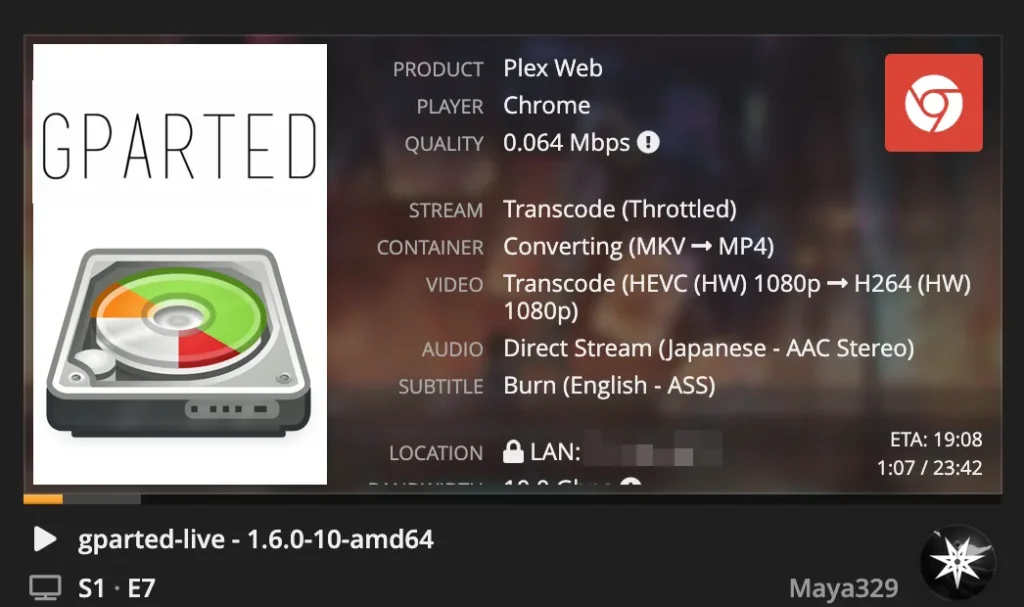
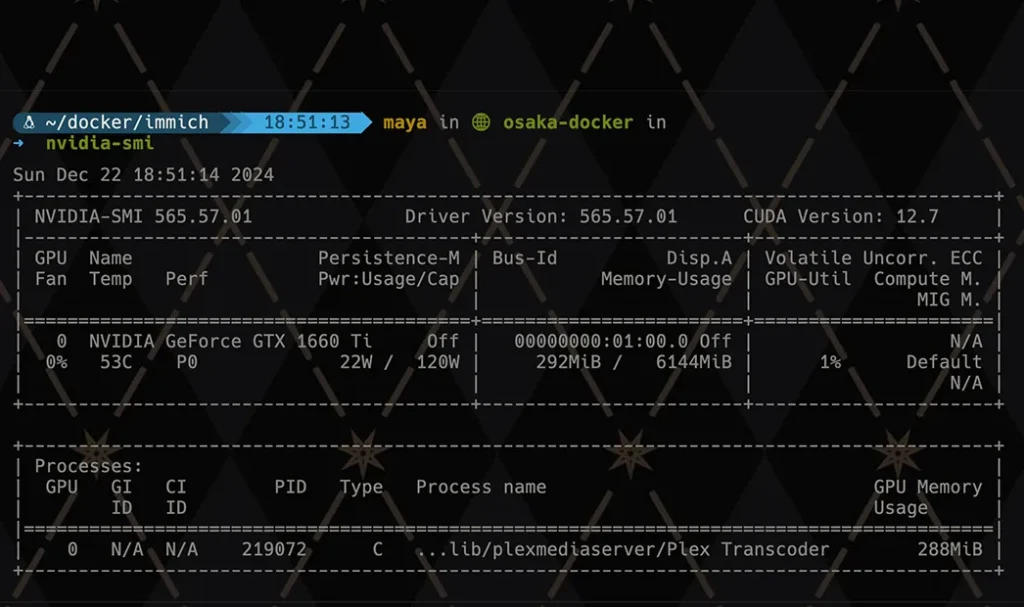
The moment of truth came when I fired up Plex, picked a high-bitrate ISO file (because why not stress-test it immediately), and watched as Tautulli reported hardware transcoding in action. A quick glance at nvidia-smi also showed Plex happily munching on GPU resources.
NVIDIA GPU Driver Patch
By default, NVIDIA’s drivers will restrict the maximum number of simultaneous NVENC encoding sessions on consumer-grade GPUs. This means you will be restricted to only be able to server a handful of concurrent streams with Plex using the GPU. Applying this patch will fix that.
And That’s a Wrap!
After days of tweaking, migrating, and occasionally muttering curses at error messages, the server is finally up and running. CPU temps are low, load averages are stable, and the RAM usage sits comfortably around 75–80% (I’ve reserved 128GB for Docker-Server and 64GB for Client-Docker-Server).
The GPU, despite being a workhorse for Plex, rarely spins its fans above 60°C. Everything feels stable, snappy, and ready to handle whatever I throw at it next.
Sure, there were a few hiccups along the way (looking at you, disk mappings), but overall? I’d say this migration was a success. Now, onto the next adventure—probably adding even more containers. Because I can, and also, why not?